App Configuration - Modules
Adding a new module to my app
- Go to Modules in the left menu.
- Click on "+Add new" button.
- Select the modules you want to add.
- That's it!


Can I add multiple modules of the same type?
It depends of the modules.
Currently the modules that can be added multiple times are:
- Directory (display a list with title, subtitle, email, link, sub sections with links and location with map view). Ideal for listing entities, organisations or events, etc.
- People (display a list with name, description, profile picture, buttons (favourite, chat, location). Supports map view. Ideal to display a list of users or people.
- Knowledge Base (display icons that opens folders, links, enriched text page or download files). Ideal to organize knowledge for your community or create elearning tools.
💡 Tip: Each time you add a new module don't forget to edit its name and icon in the settings tab. It works the same accross all modules. See how it works for Directory HERE.
Deleting a module from my app
- Go to Modules in the left menu.
- Click on the delete icon to delete the module.

Changing the order of the modules in the app
- Go to Modules in the left menu.
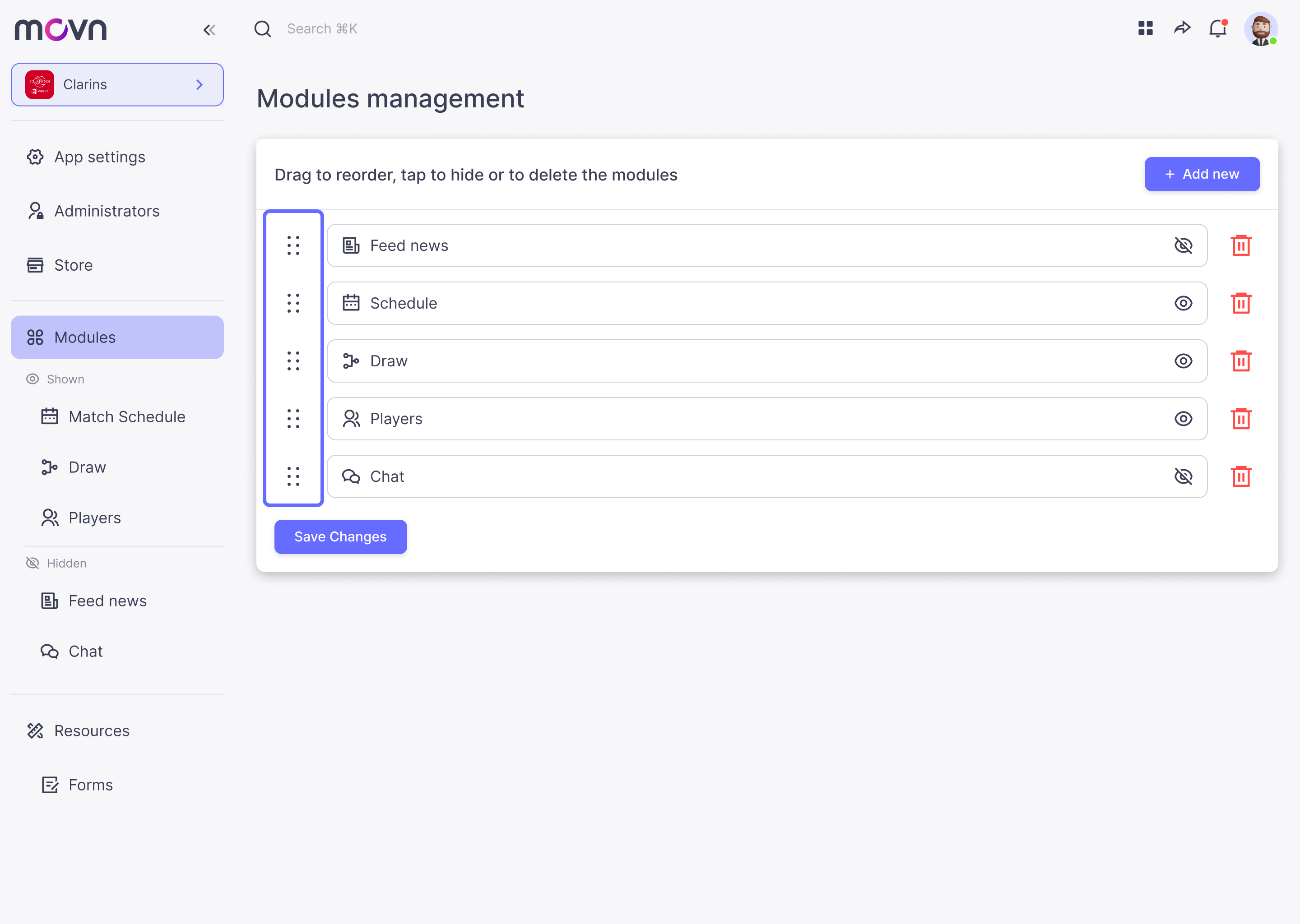
- There is a list of your modules and in the left there is an icon.
- Click and drag the module to the position you want, then stop dragging.
- Save changes.
Note: the order of the list indicates the order from left to right of the lower menu of your app.
Showing or hiding modules of an app
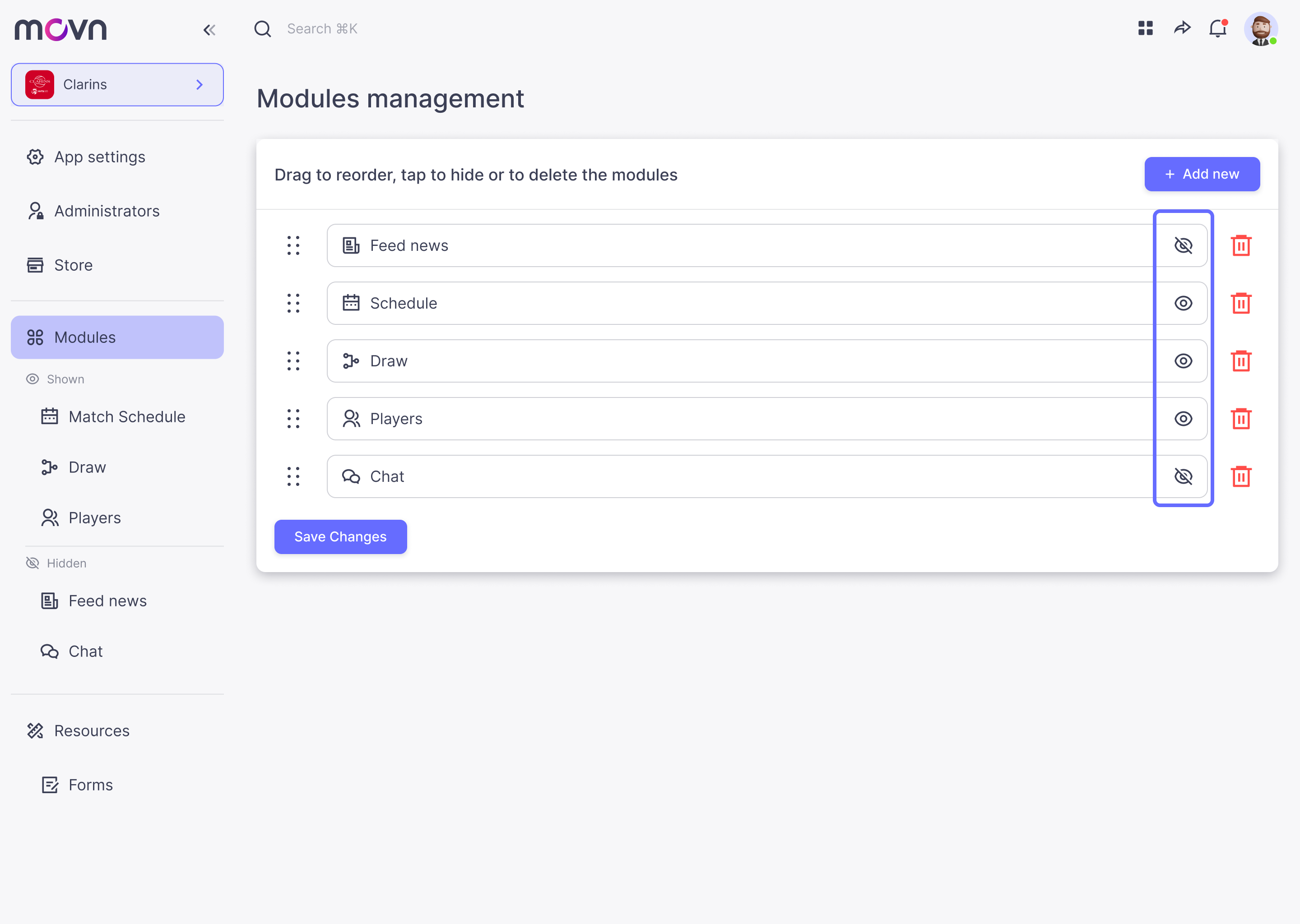
You can show or hide each module within your app from your users.
- Go to Modules in the left menu.
- Click the eye icon to toggle between showing and hiding.
- Save changes.