
Modules - People - Setup
The module is organized into five main tabs, each serving a specific purpose.
1. People Tab
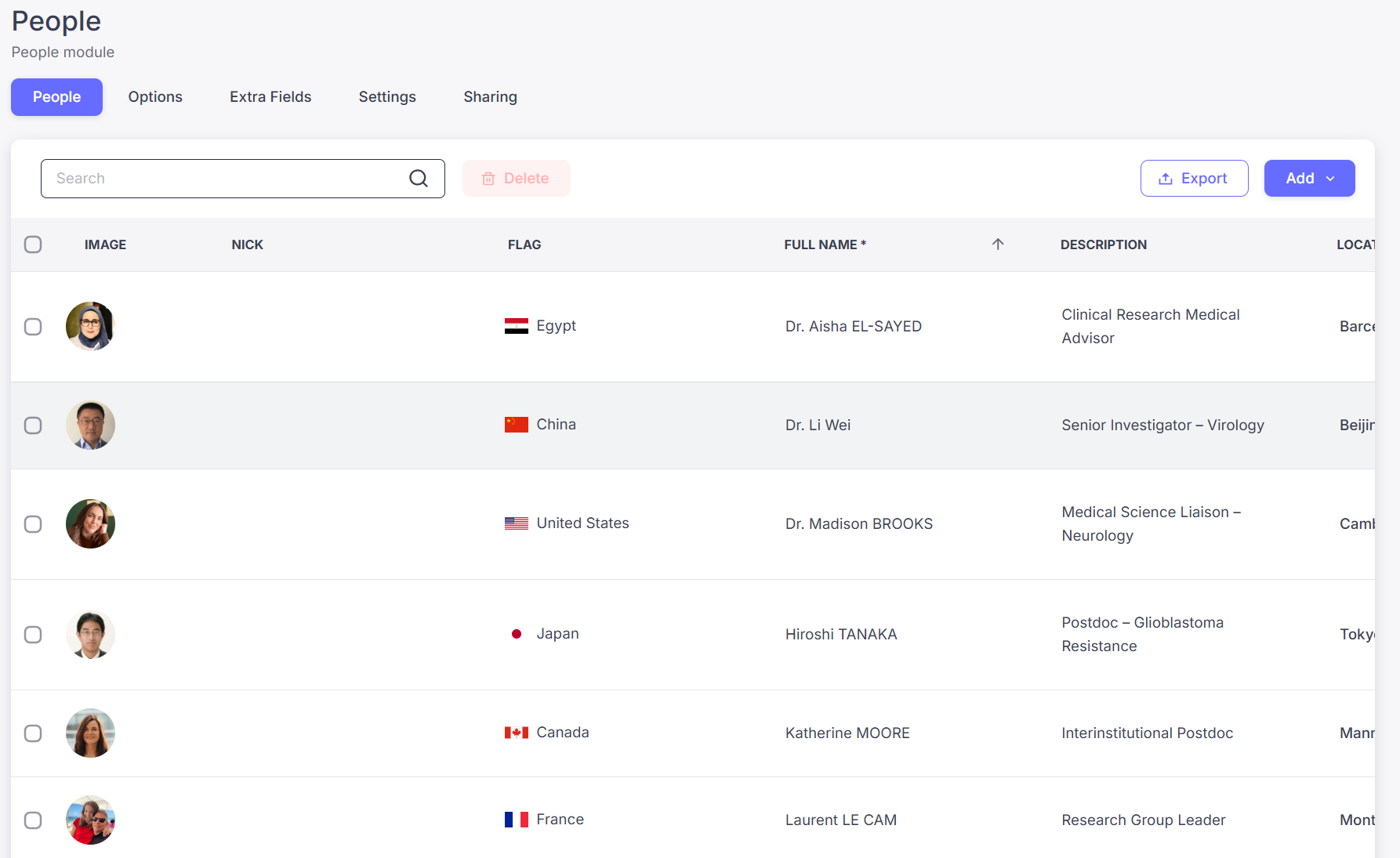
This tab displays the list of people (entries) in your module.
Here you can:
- View all profiles and their information
- Add new entries manually
- Import people in bulk using a CSV file
- Export your data
Entries are displayed in alphabetical order in the app.
Add a person manually
- Click Add
- Select Add manually
- Fill in the required fields (You don't need to save. It is automatic)
Import people in bulk
- Click Add
- Select Import
- Upload your CSV file or
-
Download the template
Fill in the templete and save it in UTF-8 format
Upload your CSV
Export the list
Click Export to download the full list of entries.
2. Options Tab
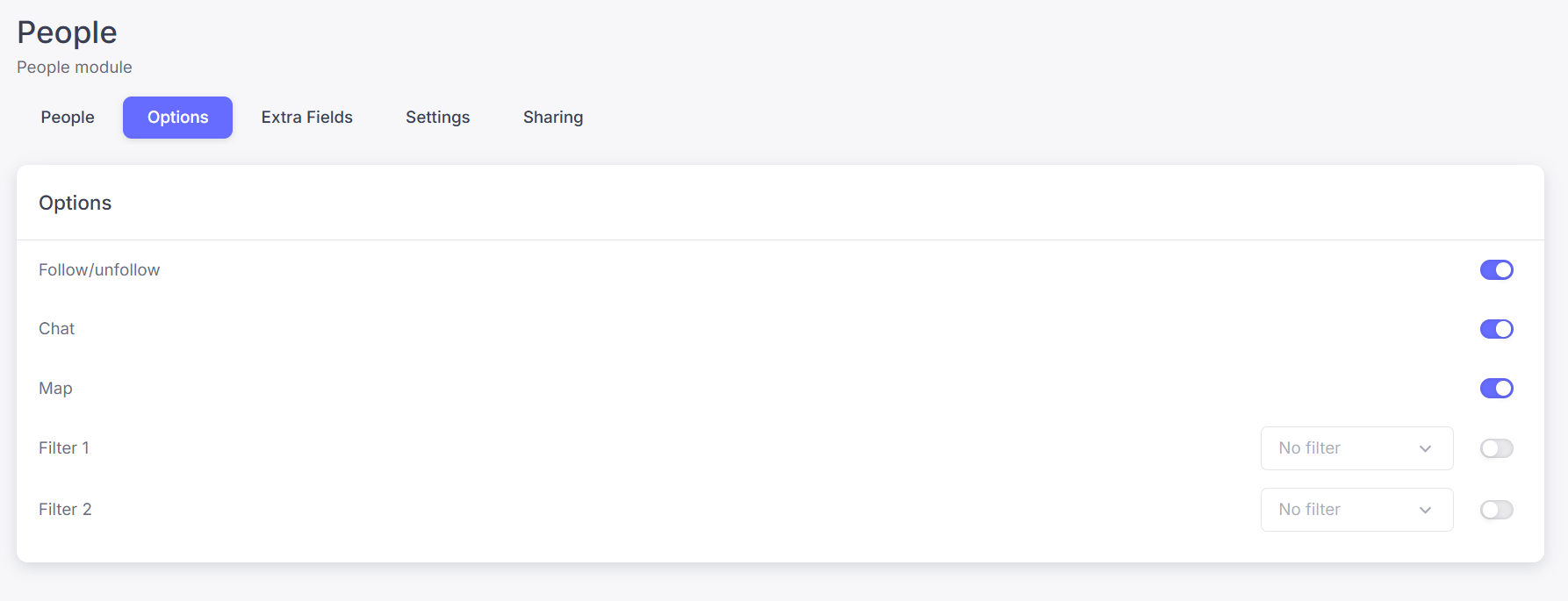
In this tab, you can configure how the People module behaves inside the app.
You can enable or disable:
- Follow/Unfollow - Allows users to follow people in the list (click the star).
- Chat - Displays a chat icon in the list, allowing users to message a person directly if their profile includes a Medikka ID.
- Map view - Displays people on a map when their profile includes a location.
- Filters (up to 2) - You can choose up to two fields to be used as filters in the app. These fields can be selected from both default fields and custom fields. Filters help users quickly find relevant profiles.
3. Extra Fields Tab
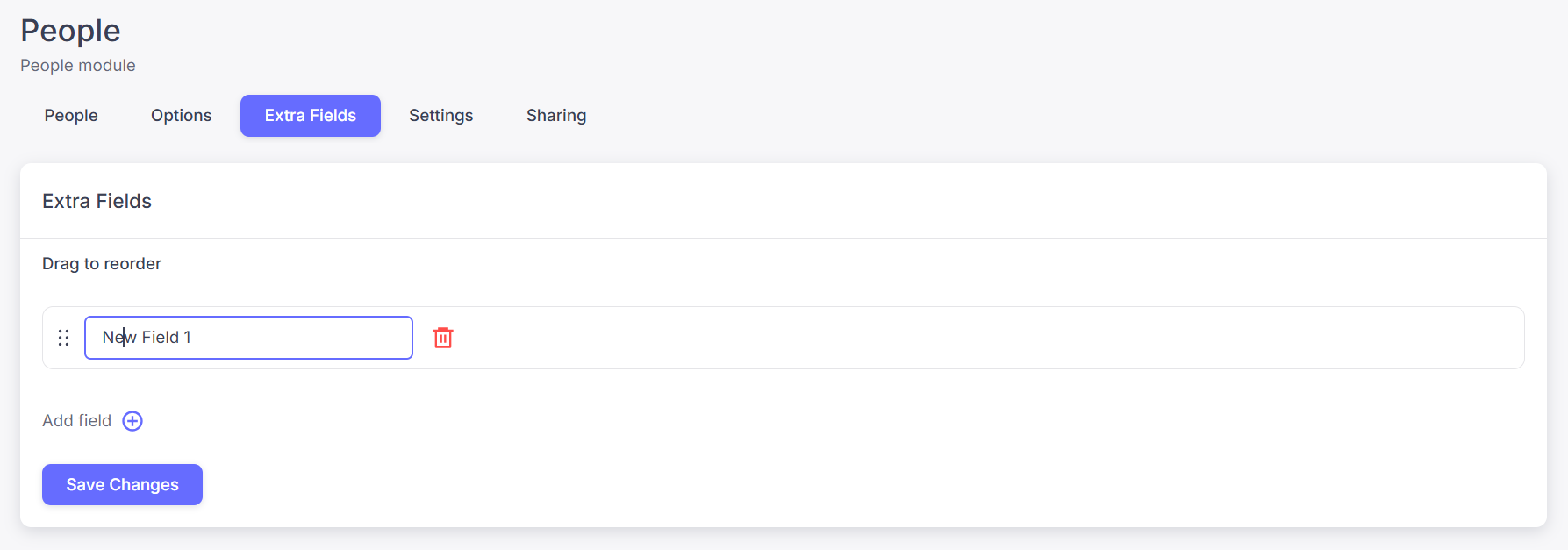
This tab allows you to create and organize additional fields for each profile.
You can:
- Add custom fields
- Define the order in which fields appear
- Adapt the module to your specific needs
Default fields
The following fields are included by default and cannot be removed:
- Image
- Nick (Medikka ID)
- Flag
- Full Name
- Description
- Location
These fields form the base structure of each profile.
4. Settings Tab
The Settings tab allows you to customize how this module appears in your app.
You can:
- Change the name of the module (default: People)
- Select the icon displayed in the app navigation bar
These settings are specific to this module, but follow the same logic across all modules in the platform. This means you can fully adapt each module to your use case (e.g. Members, Speakers, Researchers, Players, etc.).
5. Sharing Tab
The Sharing tab allows you to promote and access the module easily.
You can generate:
- A direct link
- A QR code
These open the app directly on the People module, instead of the app’s landing page.
This is particularly useful for:
- Communities
- Events
- Networks
- Member directories
How to share the module
- Go to the Sharing tab
- Click Share your module
- Copy the link or download the QR code
💡 Best Practice
For the best user experience:
- Add profile pictures
- Use custom fields to structure information
- Enable map view when location is relevant
- Configure filters to make discovery easier
This will turn your People module into a powerful networking and discovery tool.