
Modules - News Feed - Setup
- Go to News Feed in the left menu. You will see the following screen.
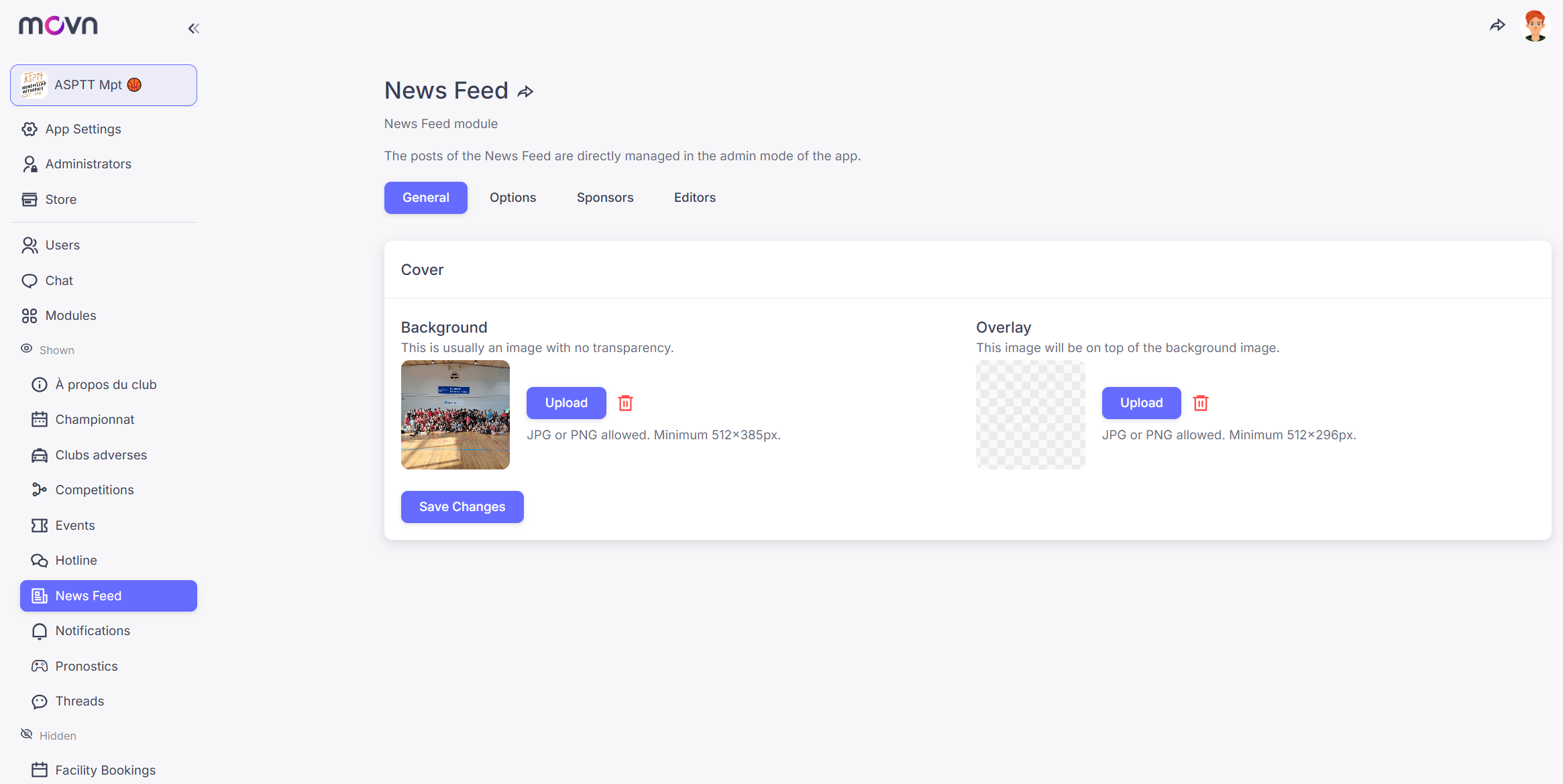
News Feed is divided in 4 sections:
- Options: here you can switch on/off the following options:
- Show number of likes
- Show number of shares
- Send notifications on new posts (users will be informed in real time that there is a new post on the wall through push notification)
You can also manage these options from the App (1- Open your app 2- Go to admin mode 3- Click on the ⚙ top right button)
- General: manage the cover to give a beautiful look and customization to your news feed tab
- Background
- Overlay
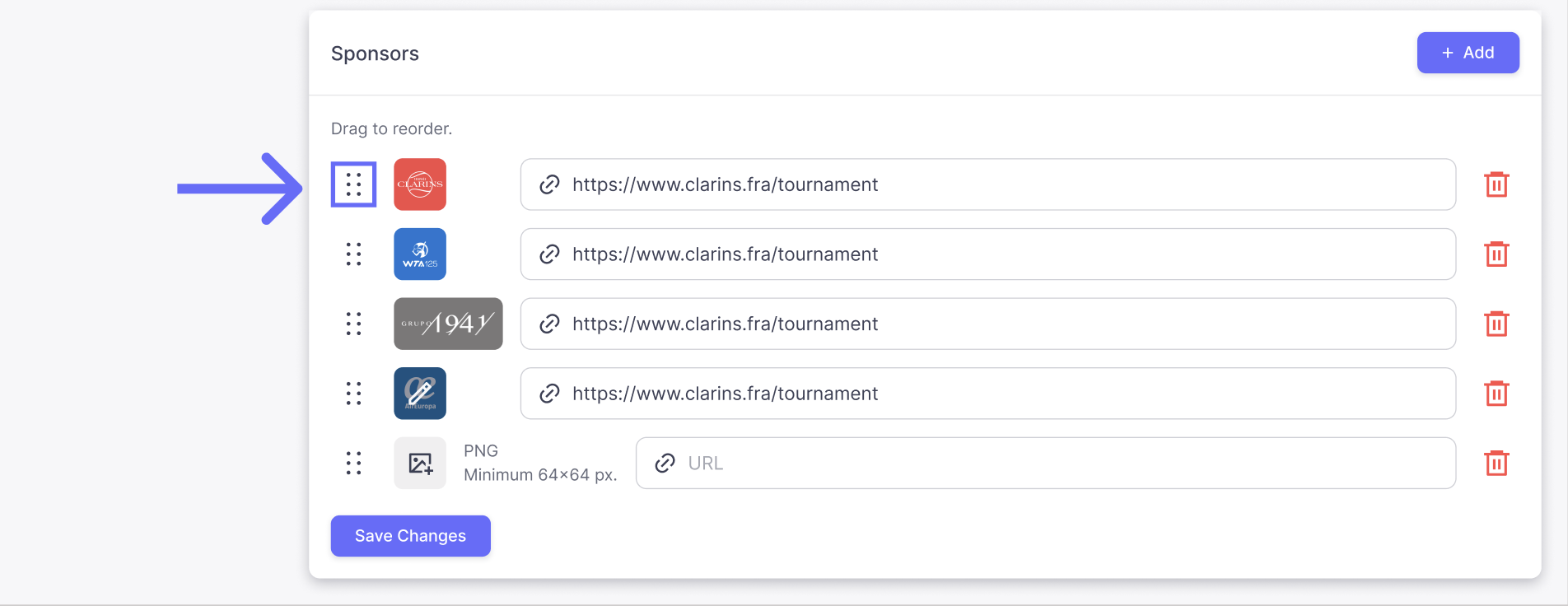
- Sponsors: in this section you can upload images of the sponsor of your app
- Add a new sponsor:
- Click the add button
- Click the button of an image with a + and upload the image
- Add an URL. (When your user tabs on the sponsor image in your app, it will redirect them to the URL)
- To delete click the delete button
- Edit a sponsor:
- Image: Hover on the image and a edit button will appear, click it and upload a new photo
- URL: Click on the input and retype the URL
- Reorder the images:
- To reorder the images click on the icon on the left of the list, then drag the line to the position you like
- Add a new sponsor:
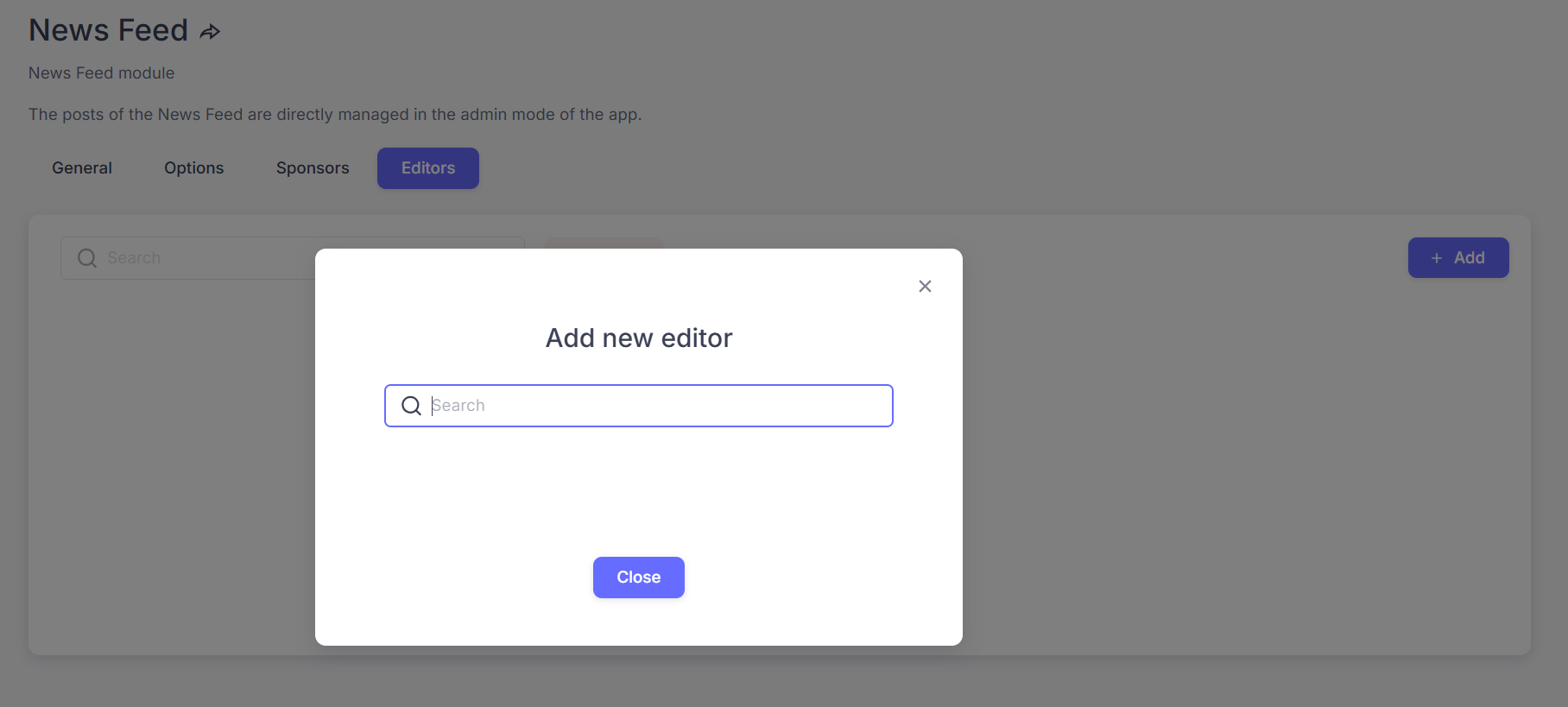
- Editors: in this section you can grant publishing rights to any user
- Go to the "Editors" tab
- Click on the "Add" button
- Start typing the name of the new editor in the pop up window
- Select the editor in the list
Note: Administrators of your organization (Members) automatically have all permissions, including Editor rights.
-
Sharing: this section allows you to generate a direct link and a QR code for this module. These links open your app and take users directly to this specific module.
To share the module:
- Go to the Sharing tab.
- Click the Share your module button.
- Download the QR code or copy the link to share it with your audience.

Note: Most modules include a Sharing tab and follow the same process. The generated link is a deep link, meaning it opens the app and takes users directly to the corresponding module.
How to post on the News Feed wall
See related articles below